Change one thing at a time. First confirm the laptop port can output video; buying another cable cannot add a missing port capability.
Identify the laptop port
Find the exact model number and the manufacturer’s port specifications. Look for explicit video support, such as DisplayPort Alt Mode. Charging through a USB-C port does not prove that it supports a screen. When a manual is ambiguous, ask the manufacturer about that specific port.
Use a known video-capable cable
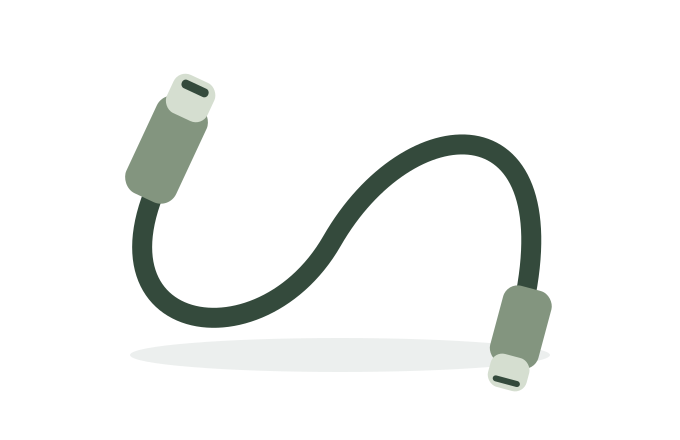
Start with the monitor’s supplied video cable if available. A charging cable can fit correctly while lacking the video capability you need. Remove intermediate hubs and adapters while troubleshooting. Connect directly to the laptop so you can isolate which part of the chain is failing.
Check input and power
Select the connected input in the monitor menu. If there are separate USB-C sockets for power and video, use the one specified by the manual. Where supported, connect the monitor’s separate power supply. Keep the laptop connected to power during the test.
Finish with display settings
Once the hardware is connected, check whether the operating system detects another display. In Windows, use the projection options to choose Extend rather than Duplicate if you want extra workspace. If a direct connection works and the hub does not, investigate the hub’s supported configurations before replacing the screen.
Good questions. Clear answers.
Does charging prove the cable works for video?
No. Power and video capability are different checks.
Should I buy a dock immediately?
First isolate the fault. A dock adds another component and may have its own compatibility requirements.
Still working out the connection?
Use the planner to build a checklist for your laptop and monitor.
Open connection plannerSources & editorial notes
Technical references checked on 12 November 2026. This is a researched guide, not a hands-on product review. Always verify the manual for your exact model.
Affiliate disclosure